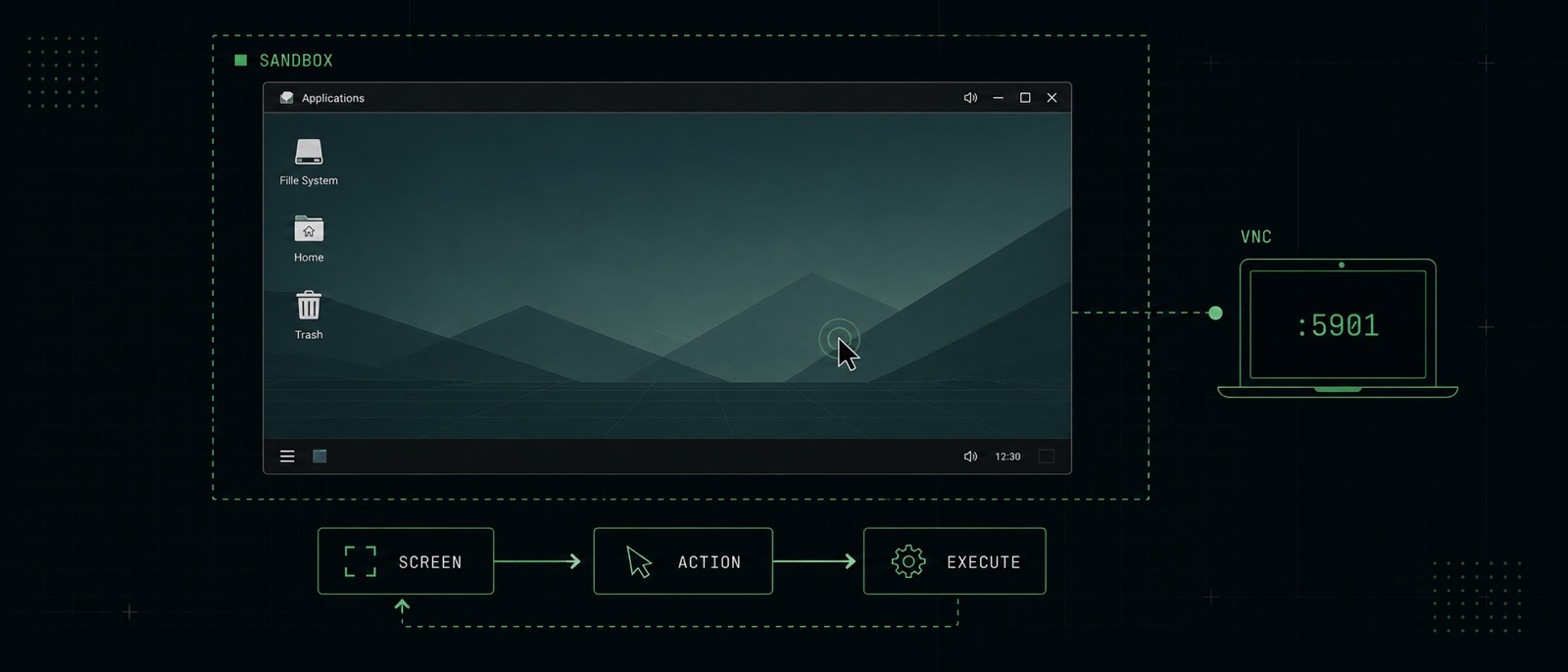
At Tensorlake, we are building AI-native sandbox infrastructure, and over the last week I have been focusing on one particular use case: Computer Use.
As part of that work, I built a small demo app to explore what this workflow should feel like in practice. The demo is available here, and the code is open source.
00 · The tiny loop
Working on it reinforced something I already suspected: the core idea behind Computer Use is actually very simple. The interesting part is not the loop itself, but the environment you put that loop in.
Computer Use can be expressed with a very small piece of code:
while True:
    screen = computer.screenshot()
    action = model.next_action(screen, goal)
    computer.execute(action)
    wait_until_ui_settles()
That is basically it. You give the agent a goal and the current state of the screen, and it decides what to do next.
Even though the loop is simple, there are many different ways to implement the system around it. The biggest decision is the environment you give the agent access to. You can let it operate inside a tightly scoped application, such as a browser, or you can give it access to a full operating system.
I decided to go with a full desktop environment.
That gives us the most flexibility. An agent can open the browser, download a file, switch to another application, inspect the filesystem, and generally operate in an environment that looks much more like a real computer. It can also install additional software if that is needed to complete the task.
The downside is also obvious: the more things that are visible in the screenshot, the harder it becomes for the agent to make the right decision. More windows, more icons, more notifications, and more visual noise pollute the context.
To help the agent a bit, I chose a very simple desktop environment: XFCE.
XFCE is light on clutter and full of large, stable UI surfaces. That matters more than it might seem at first. The actions returned by the model are sometimes tied to pixel coordinates, and those coordinates are not always especially precise. Bigger targets make it much easier for the agent to click the right thing on the first try.
I also like XFCE for a more general reason. It is boring technology.
It is simple, reliable, and proven. It has been around for a long time, and it does not try too hard to be clever. For this use case, that is exactly what I want. A flashy desktop full of animations, visual effects, and moving pieces is not helping the agent.
The same logic led me to my next choice: VNC.
VNC is an old protocol for remotely controlling a computer, and that is exactly why it is so useful here. It is well understood, widely supported, and easy to integrate with. Once I had decided on a desktop environment and a remote access protocol, the next question was obvious: where should this desktop actually run?
01 · The Sandbox
Tensorlake allows you to spin up a sandbox in a few hundred milliseconds. Once you have a sandbox, you have full control over it. You can install any software you need, configure the environment exactly the way you want, and then create snapshots that can be reused later as the starting point for new sandboxes.
I created a sandbox image that boots into a full desktop environment with XFCE and a VNC server already running. That gives me a clean, isolated machine that is ready to be used by either a human or an agent.
You can use the image as your own starting point:
tl sbx new --image tensorlake/ubuntu-vnc --cpus 4 --memory 4096The sandbox starts a VNC server on port 5901 with the password tensorlake.
Strictly speaking, the password is not especially important, because the sandbox is not publicly accessible. Still, many VNC clients expect a password, so having one there makes interoperability much easier.
To connect to the sandbox, you can create a secure tunnel to the VNC port:
tl sbx tunnel <sandbox-id> 5901After that, you can use any VNC client you like, for example the built-in Screen Sharing app on macOS, to connect to localhost:5901 and access the desktop.
That is one of the things I like most about this setup: there is no special magic. It is just a sandbox with a desktop inside it and a standard way to connect to it.
And because the environment is isolated and reproducible, you can spawn as many of these machines in parallel as you need.
A fresh machine state is not just a nice property. It is part of the interface. Humans are very good at adapting to leftover state. If a tab is already open, a modal is sitting somewhere in the background, or a file is already on disk, a human notices and adjusts. Agents are much more sensitive to this kind of hidden context. A previous session can influence what is visible on the screen, which changes what the model sees, which changes what it decides to do next.
Running the agent in a sandbox solves two problems at the same time.
The first is security and isolation. The agent is not operating on my laptop. It cannot mess up my local machine, leak state between tasks, or leave behind a weird environment that I now have to clean up manually.
The second is reproducibility. A sandbox gives me a clean place to start from. I can prepare the state I want, take a snapshot, and then reuse that exact state across many runs.
That opens up a workflow I find very compelling: a human can do the setup steps, log in, navigate to the right place, maybe enter a password or make an important decision, and then hand the machine off to the agent. From there, I can snapshot that prepared state and launch as many copies of it as I need.
02 · The Harness
The harness is the part that drives the model forward.
One feature I really wanted from the harness was the ability to manually take over the desktop at any point. Some tasks are just faster for a human. Sometimes I want to prepare the environment myself before handing control to the agent. And sometimes I simply do not want to trust an agent with secrets like passwords or authentication flows.
This turned out to be much easier to build than I expected. Because I had already chosen VNC as the remote desktop protocol, I could use noVNC as the browser-side client and get interactive desktop control in the browser almost for free. That means a human can watch the machine, step in when needed, and then hand control back to the agent without leaving the app.
Once I had a clear picture of how I wanted the system to work, I wrote everything down, pointed Codex at the Tensorlake docs, and it one-shot most of the implementation. I still had to clean up the design and make a few things fit together properly, but the first version came together surprisingly quickly.
That was another nice reminder that when the underlying primitives are simple, composing them becomes much easier.
03 · Conclusion
Working on this demo made me think that Computer Use is best understood as an environment problem, not just a model problem.
The loop itself is tiny. What really matters is the machine you put around that loop.
A good environment for Computer Use should be isolated, reproducible, easy to reset, and built on technology that is simple enough to trust. It should be easy for a human to step in, easy for an agent to continue from a prepared state, and easy to duplicate when you want to run tasks in parallel.
None of the technological choices I made are particularly glamorous. They are just boring, reliable tools that fit together well. And for something like Computer Use, I think that is a strength. Agents are already probabilistic enough. The surrounding system should be as predictable as possible.